
3 of 4 products. No description. This is what AI agents see.
Issue #3 · April 17, 2026
OpenAI killed Instant Checkout last month.
Not quietly. They admitted it directly: the initial version “did not offer the level of flexibility” they wanted. So they pulled it and shifted focus to product discovery.
The reason it died: Walmart ran the live test. Purchases completed inside ChatGPT converted at a fraction of the rate of people who clicked through to Walmart.com. Same products. Same prices. Different place to checkout.
That result settled the argument. Discovery happens in the chat. The sale still happens on your site. You keep the customer relationship, the checkout, the data.
What you might lose is the moment before all of that, when someone asks an AI what to buy and your product either shows up or doesn’t.
So I went into my Shopify admin this morning to see what the AI actually sees.
Settings → Sales channels → Agentic Storefronts banner → “Preview products.”
It opened the Shopify Catalog Mapping screen.
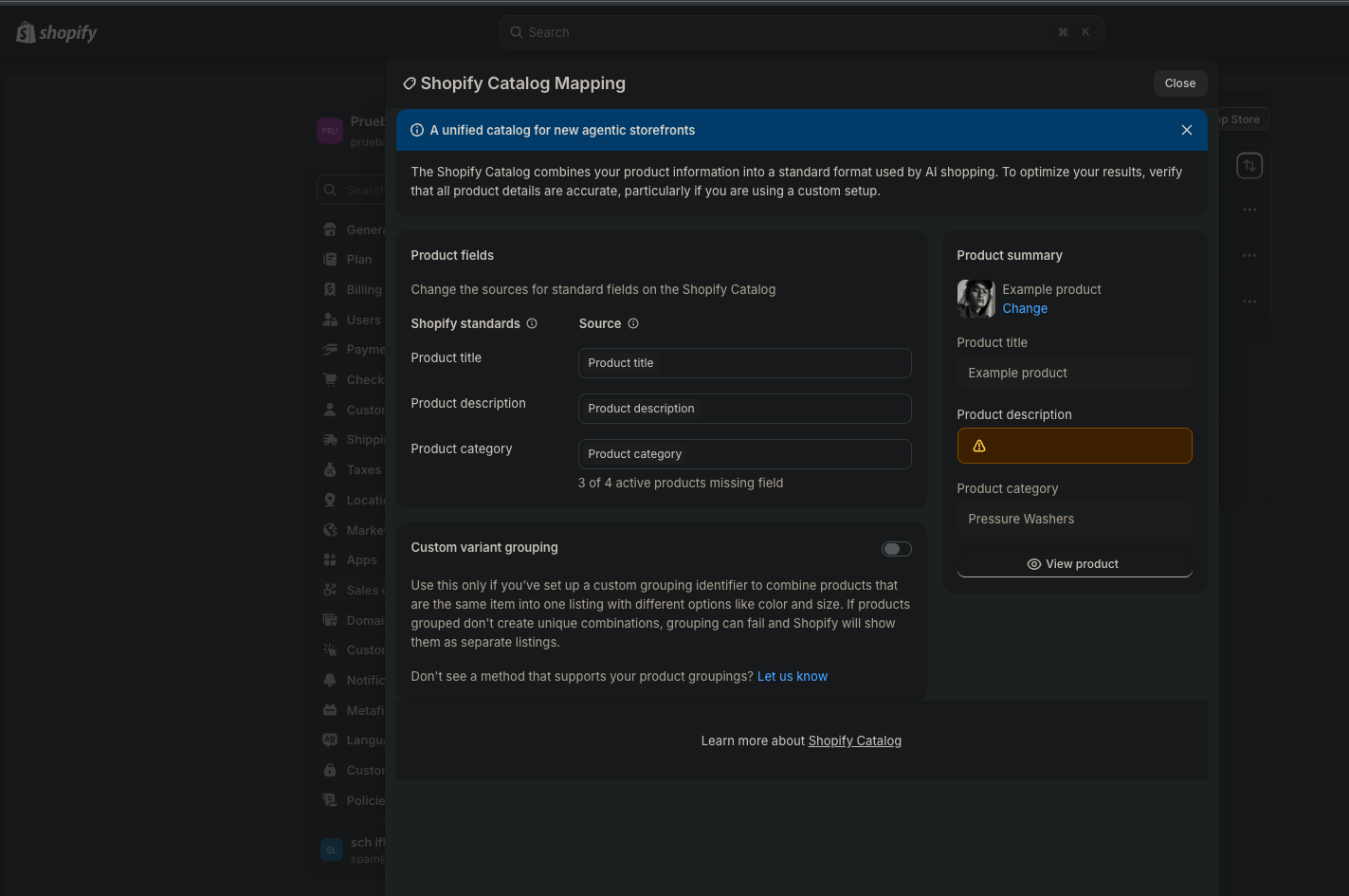
There it was. A yellow warning next to Product description: 3 of 4 active products missing field.
This is a test store. But if your real store looks anything like this, and most do, your products are entering the AI discovery layer with no description. An agent gets asked to recommend something in your category. Your listing comes back. Title: fine. Category: fine. Description: blank.
You don’t get recommended. You get skipped.
The fix is not technical. You don’t need a developer. You need to go into your catalog and write descriptions that answer the question an AI is trying to answer on a buyer’s behalf: what is this, who is it for, and why does it beat the alternative.
That’s it. That’s the whole gap for most stores.
The infrastructure is already there. Shopify built it, activated it, and wired it into ChatGPT, Google AI Mode, and Microsoft Copilot. Your products are technically in the system. Whether they’re actually useful to an AI agent when it’s making a recommendation, that’s on you.
Action this week: Settings → Sales channels → click the Agentic Storefronts banner → Preview products → open Catalog Mapping. Check the warning icons. If you see orange on Product description, fix those listings before you do anything else.
Sources: issue-3-sources
Go deeper
The CRS Encyclopedia covers the full operational framework behind these signals, 28 chapters, free.
Read the encyclopedia →Published April 17, 2026